
 Necesse
Continue your existing Necesse progress by uploading a world save from singleplayer or another server. This guide shows you where to find your local saves and how to transfer them to your hosted server.
Locating Your Local World Save
Necesse saves worlds in the following location on your PC:
Windows: %AppData%\Necesse\saves\
To navigate there:
- Press
Windows + Rto open the Run dialog. - Type
%AppData%\Necesse\saves\worldsand press Enter. - Locate the
.zipfile with your world's name.
Uploading Your World
- Navigate to the Wabbanode Control Panel and Stop your server.

- Click the Files tab.

- Navigate to the
saves/worldsfolder.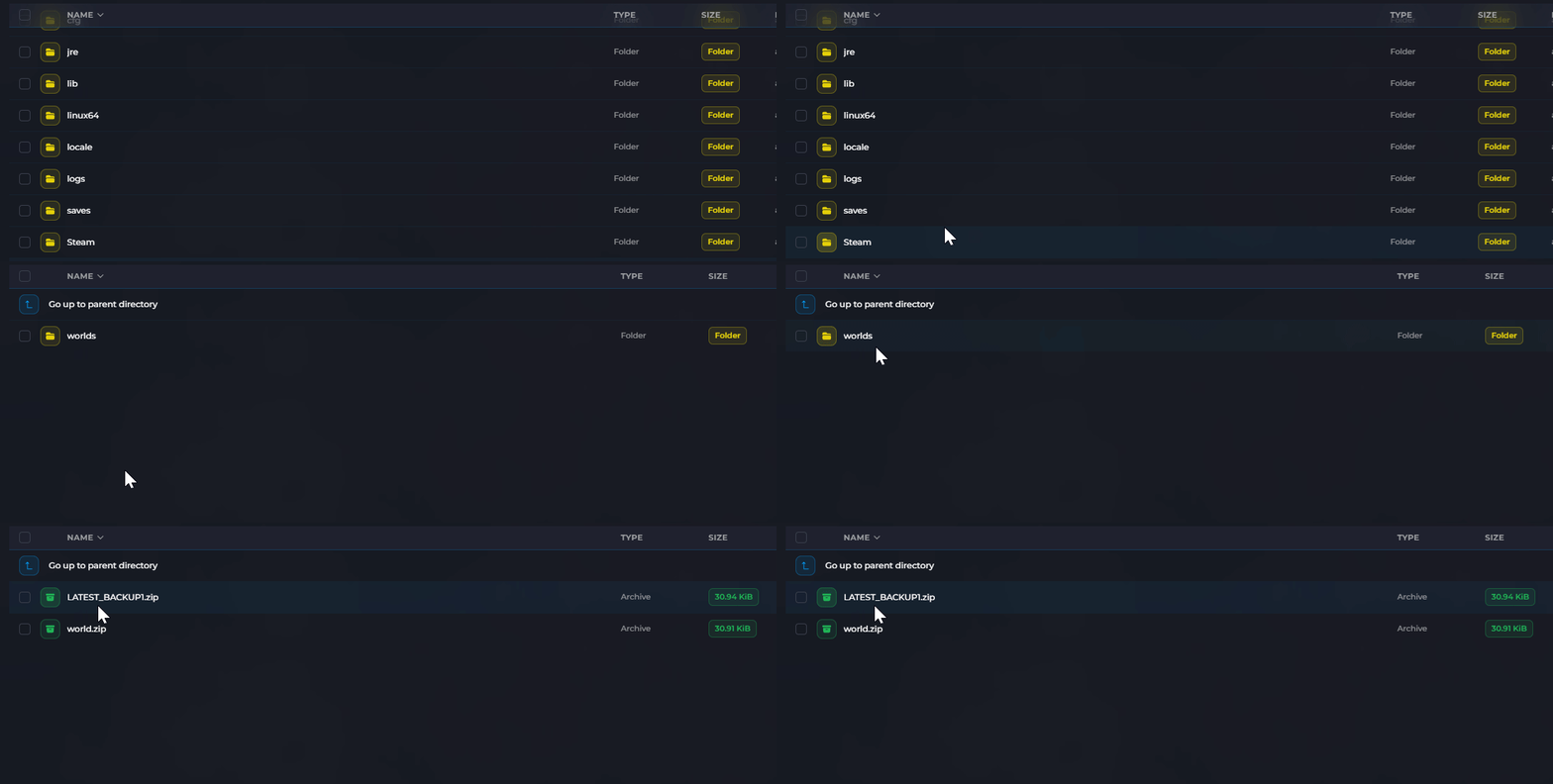
- Upload your world
.zipfile by dragging it into the file manager or using the Upload button.
- Click the Settings tab.

- Locate the World Name field and set it to match your uploaded world's name (without the
.zipextension).
- Click Save and Start your server.
If a world with the same name already exists on the server, it will be overwritten. Consider backing up the existing world first.
Now that you have uploaded your world you just need to start your server to continue playing on your uploaded world with friends.
