
 Rust
RustMost uMod plugins create a configuration file that allows you to customise their behaviour. These files are stored in the oxide/config folder and use the JSON format.
Locating Plugin Config Files
- Navigate to the Wabbanode Control Panel and select your Rust server.
- Click the Files tab.

- Navigate to the
oxide/configfolder.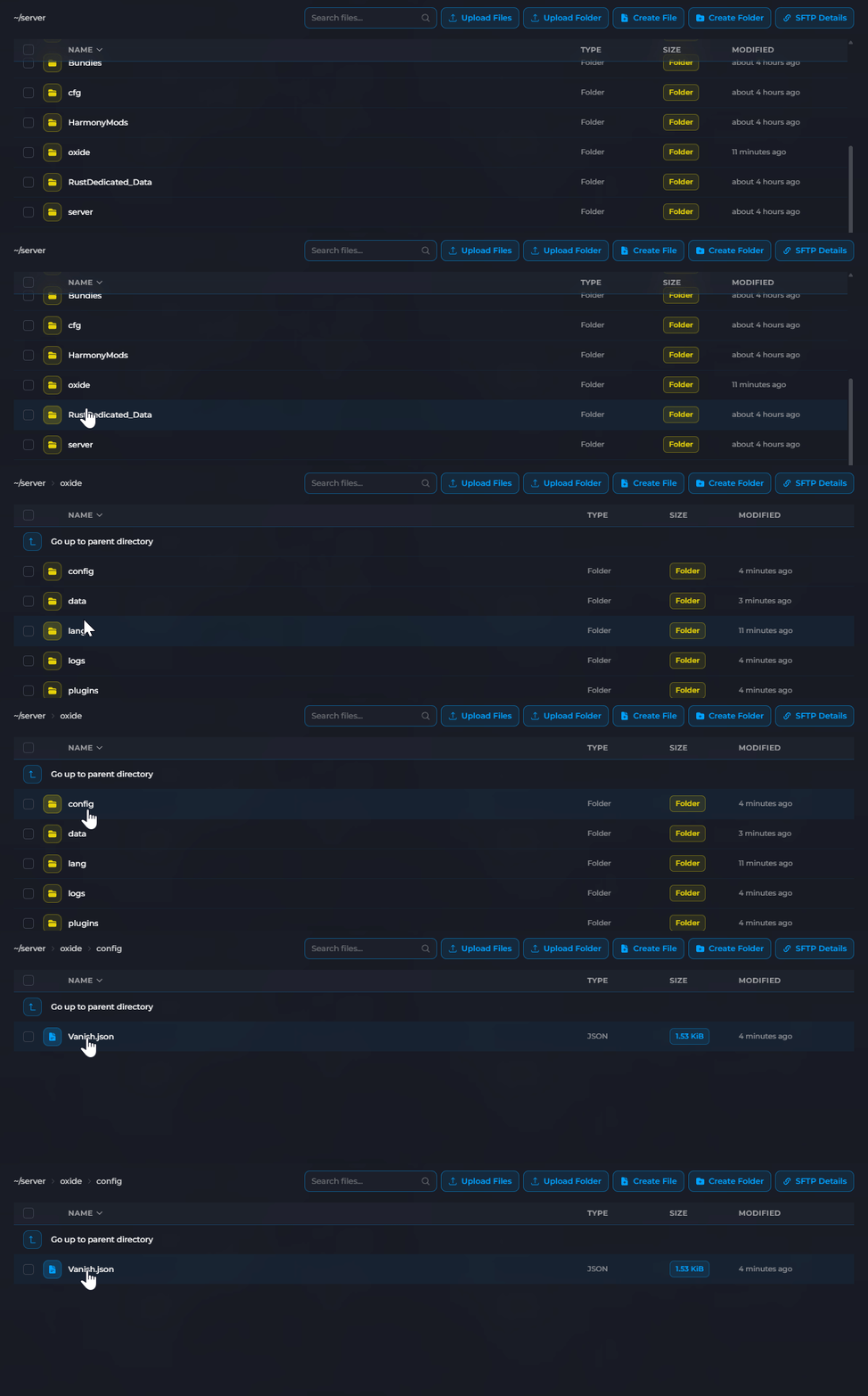
- Find the JSON file with the same name as your plugin.

Config files are only created after the plugin has been loaded at least once. If you don't see a config file, start your server with the plugin installed first.
Editing a Config File
- Click on the config file to open it in the editor.
- Modify the settings as needed.
- Click Save.
Understanding JSON Format
Plugin configs use JSON format. Here's a basic example:
{
  "Enable Feature": true,
  "Max Players": 10,
  "Welcome Message": "Hello!"
}
Common value types:
trueorfalse- Toggle settings on/off- Numbers - Numeric values like
10or2.5 "text"- Text values must be in quotes
Be careful with JSON syntax. Missing commas, extra commas, or mismatched brackets will cause the plugin to fail. If your plugin stops working after editing, check for syntax errors.
Applying Config Changes
After saving your changes, reload the plugin using the console:
oxide.reload PluginName
Alternatively, restart your server to apply all config changes.
Your plugin settings have been updated. Check the plugin's documentation on uMod for details on specific configuration options.
