
 BeamMP
BeamMP supports custom maps from the BeamNG.drive modding community. Custom maps are automatically downloaded by players when they connect to your server.
The map path is case-sensitive. Ensure it matches the exact folder name inside the zip file.
Installing a Custom Map
- Download your custom map as a
.zipfile from a mod repository. - Navigate to the Wabbanode Control Panel and Stop your server.

- Go to the Files tab.

- Navigate to the
Resources/Clientfolder.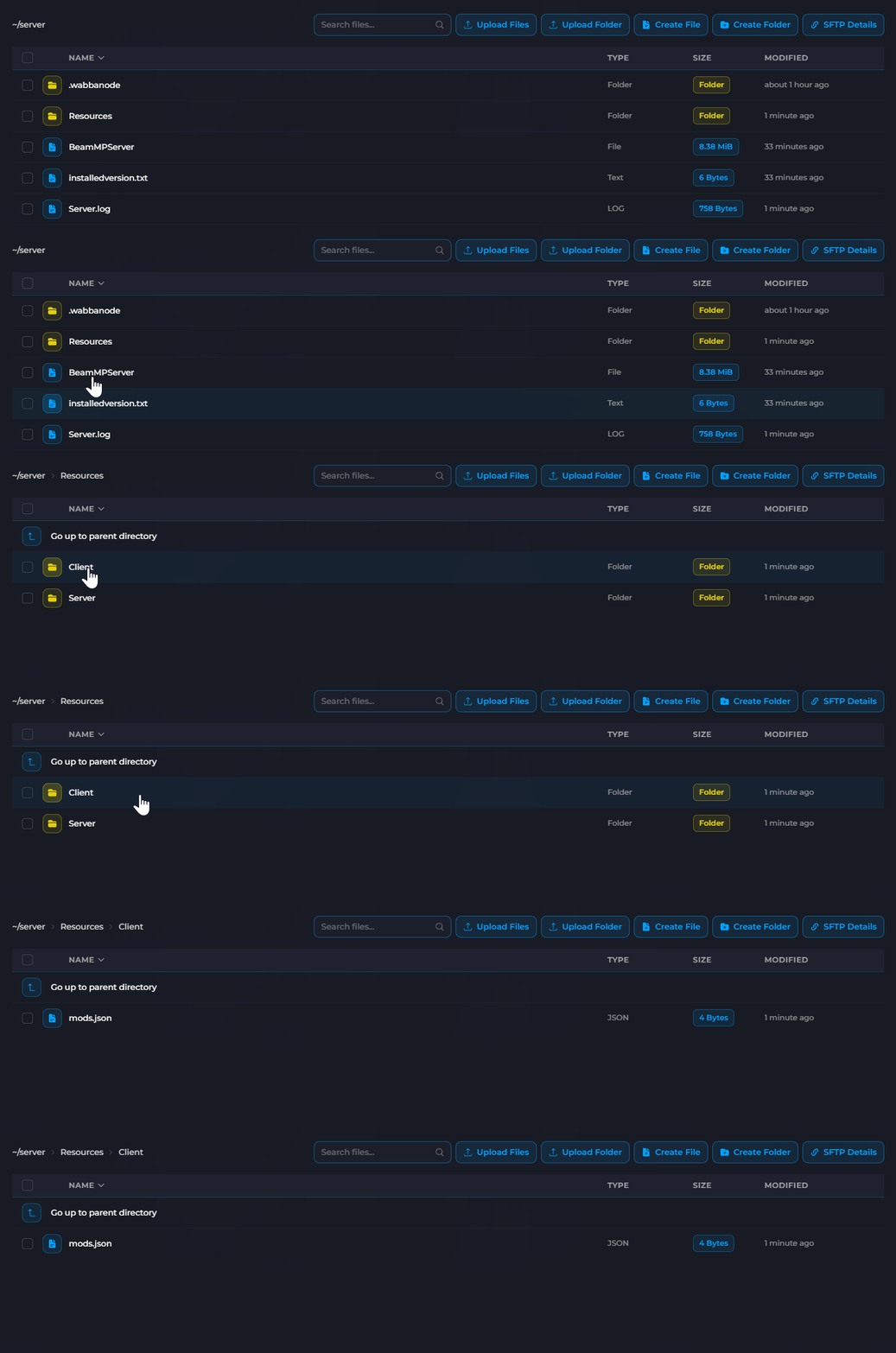
- Upload your map
.zipfile (do not extract it). - Go to Settings > BeamMP ServerConfig.toml.
- Update the Map field to your custom map's path.
- Click Save and Start your server.
Finding the Custom Map Path
Custom maps follow this path format: /levels/MAPNAME/info.json
The MAPNAME is the folder name inside the map's zip file. To find it:
- Open the map's
.zipfile. - Look for a folder inside (e.g.,
mymaporcustom_track). - Your map path would be
/levels/mymap/info.json.
How Auto-Download Works
When a player connects to your server:
- BeamMP checks if the player has the required map.
- If missing, the map automatically downloads from your server.
- Once downloaded, the player spawns on the map.
The first connection may take longer while the map downloads. Subsequent connections are instant.
Large custom maps may cause longer download times for players. Consider the file size when selecting maps for public servers.
Popular Map Sources
- BeamNG.drive Forums - Official mod repository
- BeamNG.drive Mods - Maps category
Your custom map is installed. Players will automatically download the map when they connect.
