
SUMMER SALE-30% OFFwithSUMMER30

Minecraft Minecraft Updated Jul 21, 2026

How to Add Mods to an Existing Modrinth Modpack

Learn how to add new mods to an existing Modrinth modpack instance using the Modrinth App's Content tab, then push the updated pack to your Wabbanode server.

You can add new mods to an existing Modrinth modpack instance at any time through the Modrinth App's Content tab, whether the pack is one you built yourself or one you downloaded from another creator, then update your Wabbanode server copy to match.

Opening Your Modpack Instance

Open the instance you would like to change first, since new mods get added from inside that specific modpack rather than from the app's home screen.

  1. Open the Modrinth App. Modrinth APP on Windows
  2. From the home screen, click the modpack instance you would like to add mods to. Modrinth Selecting Modpack

Adding a Mod

Each new mod gets searched for and installed the same way mods were added when the pack was first built.

  1. Go to the Browse content tab inside the instance. Modrinth Existing Modpack Add Content

  2. Search for the mod you would like to install.
  3. Click Install next to the mod to install it. Modrinth Search and Install mod
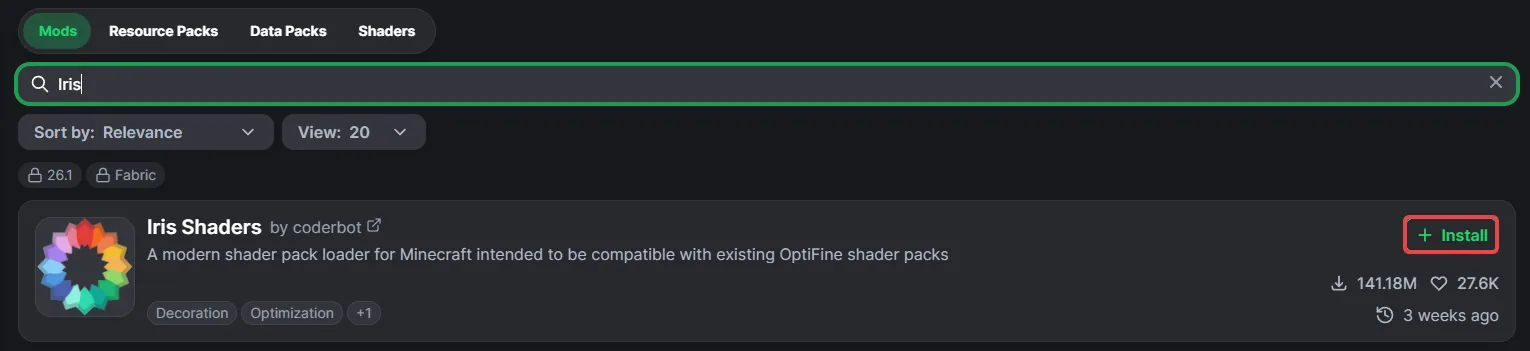
The Content tab's search results are already filtered to versions matching your instance's loader and Minecraft version. You won't be able to install a version outside that filter.

Checking for Conflicts

After adding a mod, launch the instance with Play and check that it starts without crashing. If it crashes, check the game's crash log, which usually names the conflicting mod or a missing dependency directly.

Updating the Server Version

If this modpack is already running on your Wabbanode server, you'll need to add the same mod there too, since installing it in the Modrinth App only changes your own computer. If you haven't installed this modpack on your server yet, see How to Install a Custom Modpack on Your Minecraft Server first.

  1. Navigate to the Wabbanode Control Panel, select your server, and stop it before making any changes. Stopping a Minecraft server using the Wabbanode Panel
  2. In the Modrinth App, click the three dots on your instance and choose Open Folder, then open the mods folder and find the new mod's .jar file.
    Check whether the mod is actually needed on a server first, since some mods are client-only, things like resource pack helpers or UI tweaks don't need to be uploaded at all.
  3. Upload the new .jar file to your server's mods folder through the Files tab. Navigating to the File Browser on the Wabbanode Panel
  4. Restart your server from the top of the panel.

Your modpack now includes the new mod on both your computer and your server.

Continue Learning

Browse all Minecraft tutorials Explore our library of guides and tutorials
Get 10% off your first month Looking for a Minecraft server? Use code HELPCENTER at checkout.
Get Server
Got Questions?

Frequently Asked Questions

Everything you need to know about our game server hosting. Can't find what you're looking for? Contact our support team.

How do I set up my game server?

Setting up your game server is simple and fast. After choosing your plan, follow our user-friendly setup guide, and your server will be up and running in minutes. We offer one-click modpack installation, automatic backups, and 24/7 support to ensure a smooth setup experience.

What kind of support do you offer?

We provide 24/7 expert support through live chat, ticket system, and knowledge base. Our knowledgeable team responds within 5 minutes on average and has 10+ years of experience managing game servers. We offer setup assistance, troubleshooting, and ongoing maintenance support.

What hardware do you use for hosting?

We offer two hardware tiers across our global datacenters. Our budget tier features AMD EPYC 7551 processors, while our performance tier uses the latest AMD Ryzen 9 7950X and 7950X3D processors. All servers feature NVMe SSD storage, DDR5 RAM, and dedicated CPU cores. Our infrastructure provides 99.9% uptime with full DDoS protection and automatic failover systems.

Can I add mods and plugins to my server?

Yes! We offer support for all popular server types including Forge, Fabric, and Paper for Minecraft, as well as mods for Rust, Valheim, and other games. You can install mods, modpacks, or plugins directly from our control panel. If you have any issues, our support team can help with installation and configuration.

Can I upgrade my server plan later?

Yes, you can upgrade or downgrade your server plan at any time with zero downtime. Our flexible scaling allows you to adjust RAM and CPU as your needs grow. Upgrades take effect immediately, and we prorate any billing changes to ensure you only pay for what you use.

What is your refund policy?

We offer a 7-day money-back guarantee on all hosting plans. If you're not completely satisfied with our service, you can request a full refund within the first week, no questions asked. We also offer prorated refunds for early cancellations after the initial period.

Do you offer DDoS protection?

Yes, all our servers include enterprise-grade DDoS protection at no extra cost. Our network can handle attacks up to 1Tbps and automatically filters malicious traffic. We use multiple layers of protection including rate limiting, traffic analysis, and real-time threat detection to keep your server running smoothly.

How fast is server setup?

Our servers are set up in under 10 minutes on average. We use automated provisioning systems and pre-configured templates to ensure instant deployment. Once your payment is confirmed, your server is automatically created, configured, and ready to play. No waiting, no manual setup required.

What locations do you offer?

We have datacenters in North America (Texas, Virginia, Canada), Europe (London, Germany, France, Finland), and more locations coming soon. All locations feature low-latency connections, high-speed internet, and redundant power systems. You can choose the location closest to your players for the best performance.

Do you offer automatic backups?

Yes, we provide automatic daily backups with 7-day retention at no extra cost. Backups are stored in separate datacenters for security and can be restored with one click. We also offer manual backup creation and custom backup schedules for all plans.

Support Team

Looking for a server?

Or talk with

Our Team
