Minecraft
Minecraft servers running in online mode verify every player against Mojang's authentication servers before letting them join. When those servers have an outage, players can get disconnected with errors like "Invalid session," "Failed to verify username," or "Servers are down for maintenance," even though nothing changed on your own server.
Checking If It's a Mojang Outage
Before changing anything on your server, confirm the problem is actually on Mojang or Microsoft's side rather than something local to your server or your players.
- Xbox service status: check the Xbox service status page for reported issues, since Minecraft account logins now run through Microsoft's authentication.
- Down Detector: look up Minecraft's status on Down Detector to see if other players are reporting the same errors right now.
- Reddit: search r/Minecraft for recent posts about login or authentication errors, since a widespread outage is usually already being discussed there.
What You Can Do While It's Down
You have two practical options while you wait for Mojang's side to come back online.
- Wait it out: Mojang authentication outages are usually resolved within a few hours, and there's nothing on your end that speeds this up.
- Temporarily switch to offline mode: this skips Mojang verification entirely so players can keep connecting during the outage.
Offline mode removes Mojang's identity verification, meaning anyone can join using any username, including impersonating an existing player. Only use this temporarily during a confirmed outage, and switch Online Mode back on as soon as authentication servers are back up.
If You Still Can't Connect With No Outage Reported
If none of the checks above show a reported outage but you're still getting a login or authentication error, it usually still isn't anything wrong with your Wabbanode server. It's more likely a smaller Minecraft or Microsoft-side issue that hasn't been widely reported yet. Wait an hour and try again, or try one of these two fixes in the meantime.
Adding an IPv4 Launcher Argument
This forces the vanilla Minecraft Launcher to use IPv4 networking, which can clear up login errors caused by an IPv6 connectivity issue on your computer.
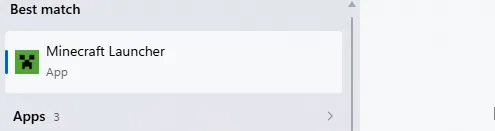
- Open the Minecraft Launcher.
- Select the Installations tab.

- Hover over the installation you use, click the three dots, and choose Edit.

- Scroll down and select More Options to reveal the JVM Arguments field.

- At the end of the JVM Arguments field, add
-Djava.net.preferIPv4Stack=true.
- Click Save, then try starting the game and connecting again.
Skipping the Vanilla Launcher in CurseForge
Some players have found success working around login errors in CurseForge specifically by switching to its launcher settings instead of the standard Minecraft launcher.
- Open CurseForge and click the gear icon in the bottom left corner to open Settings.

- Under Game Specifics, select Minecraft.
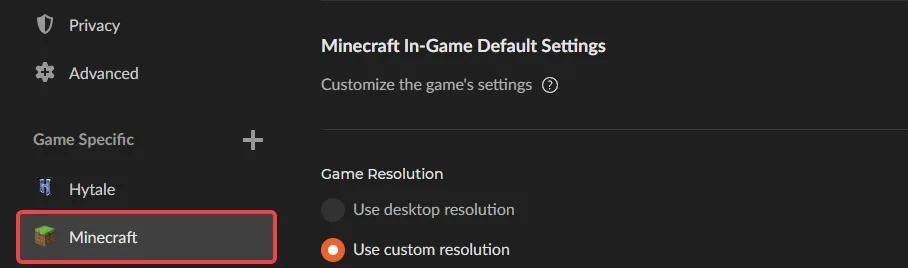
- Under Launcher Settings, choose Use CurseForge launcher.

- Log into your Microsoft account again if prompted, then try logging into the server.
This fix has mostly helped players on older modpacks, generally version 1.16.5 and below.
You now know how to check for a Mojang authentication outage, what to do while it's down, and what to try if you're still getting errors even when nothing looks down.