Minecraft
If Minecraft is freezing, crashing, or stuttering on your own computer, allocating more RAM to the game client often fixes it, especially with modpacks or high-resolution resource packs. This is separate from your server's RAM and only affects your local game.
If you're playing on a Wabbanode server, its RAM is set through your server plan, separate from your local client memory. We have a guide on how to upgrade or downgrade your server here.
Vanilla Launcher
- Open the Minecraft Launcher.

- Click the Installations tab.

- Click the three dots on the profile you use and select Edit.

- Click More Options.

- Under JVM Arguments, find the
-Xmxvalue (for example-Xmx2G) and change the number to your desired amount, such as-Xmx6Gfor 6 GB.
- Click Save.
CurseForge App
- Open the CurseForge app and go to Settings.

- Find and open the Minecraft settings.
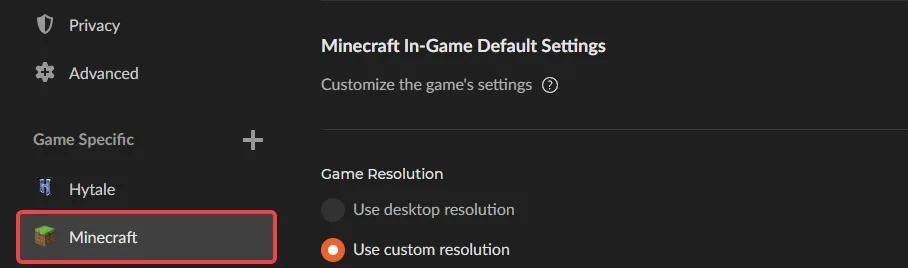
- Find Java Settings and drag the Allocated Memory slider to your desired amount.
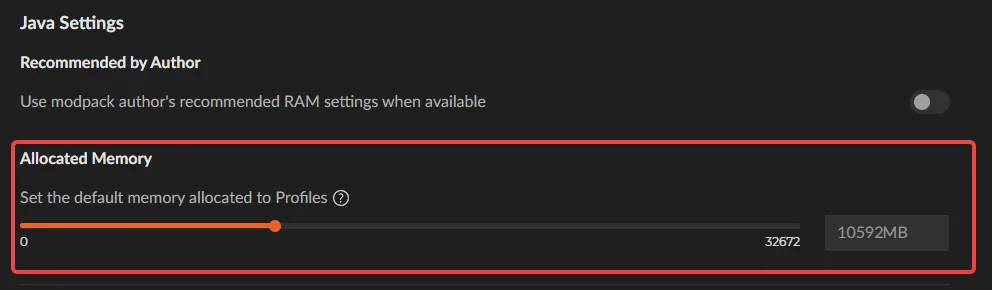
To set memory for one specific modpack rather than every instance, click the three dots on that modpack under My Modpacks, choose Edit, and adjust memory there.
Modrinth App
- Open the Modrinth App and click on the Modpack you are using.

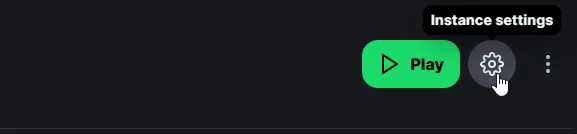
- Go to Settings within the instance.
- Find Java and memory, click on Custom memory allocation and drag the Allocated Memory slider to your desired amount.

How Much RAM to Allocate
Only allocate memory you can spare. As a rough guide, vanilla Minecraft tends to run fine on 2 to 4 GB, moderately modded packs often need 4 to 6 GB, and large modpacks can need 8 GB or more, though the right number always depends on the specific pack and your own PC. If you're running a modpack, check its page on CurseForge or Modrinth first, since most list a recommended RAM amount you can use as your starting point.
More isn't always better here. Giving Minecraft more RAM than your system has free will slow your whole computer down, since it leaves too little for everything else running alongside it. Assigning your PC's full total RAM, or more than you actually need, can also make Minecraft itself run worse rather than better, since a larger amount of memory takes Java longer to clean up in the background, which shows up as stutters. Leave a few GB free for your operating system and other programs, and only increase the amount further if you're still seeing crashes or lag at your current setting.
Minecraft now has more memory to work with on your computer.