
 Valheim
You can upload a world you've created in single-player to your Valheim server. This lets you continue exploring a world you've already built up, or share a pre-configured world with your friends.
Locating Your Single-Player World
If you haven't already, create and play in the world you want to upload using Valheim's single-player mode.
Single-player worlds are stored at:
C:\Users\<username>\AppData\LocalLow\IronGate\Valheim\worlds
Replace <username> with your Windows username. You can also paste %userprofile%\AppData\LocalLow\IronGate\Valheim\worlds into File Explorer's address bar to go there directly.
Locate the two files for your world:
<worldname>.db— Contains your world data (structures, terrain changes, etc.)<worldname>.fwl— Contains world metadata and the seed

Uploading to Your Server
- Navigate to the Wabbanode Control Panel and Stop your server.

- Click the Files tab.

- Navigate to the saves > worlds_local folder.
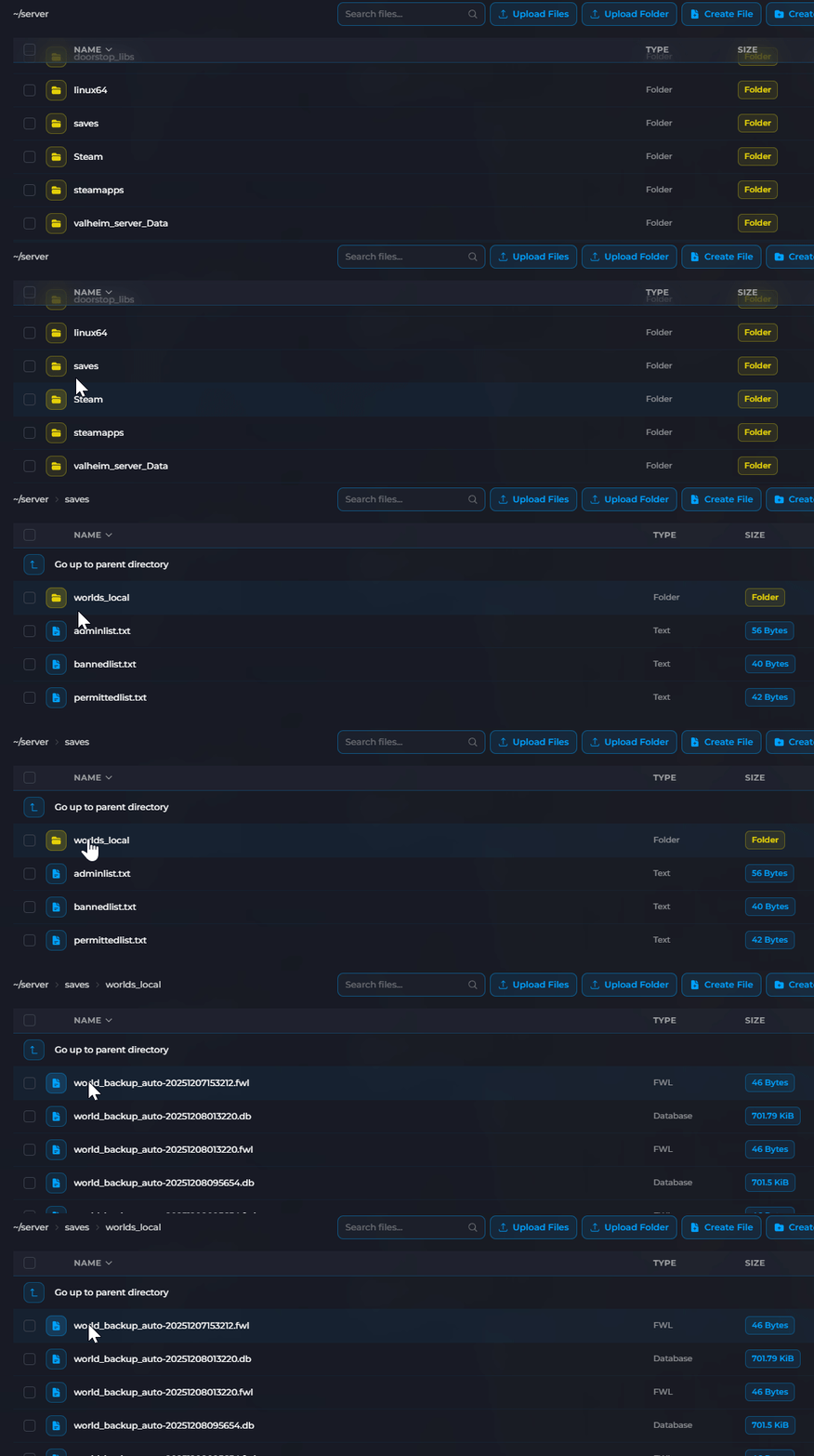
- Click Upload Files and select both the
.dband.fwlfiles for your world.
Setting the World Name
- Click the Settings tab.

- Set the World Name to match your uploaded world's filename (without the file extension).

- Click Save and Start your server.
Your server will now load your uploaded world.
Make sure the World Name exactly matches your uploaded files. If your files are myworld.db and myworld.fwl, the World Name must be myworld.
Your custom world is now running on your Valheim server. All your builds, explored areas, and progress from single-player are preserved.
