Frontier Legends
Hosting your own Frontier Legends server gives you full control over how your world works. Editing your server settings is the best way to customise your server, so it matches your playstyle.
Always make sure your server is fully stopped before making any changes to your server settings as this can cause issues with your save file.
Editing Server Settings
- Navigate to the Wabbanode Control Panel and Stop your server.

- Click the Settings tab to find your Frontier Legends Server Settings
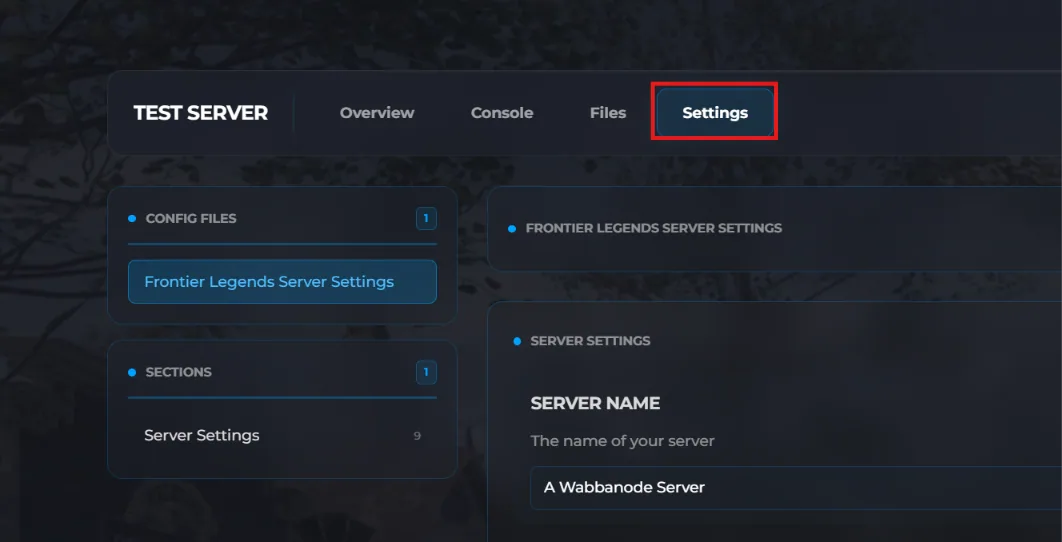
- Adjust any of the settings as needed.
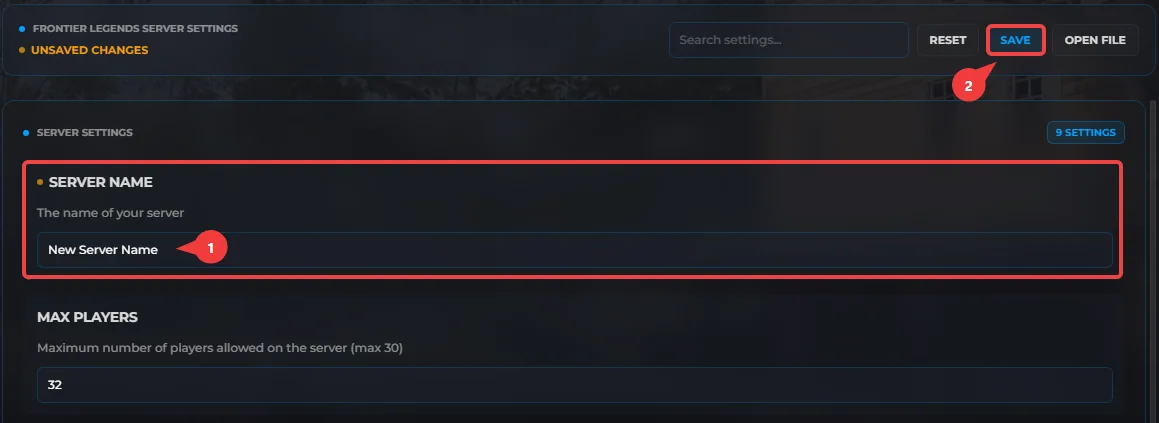
- Click Save and then Start your server to apply them.
Server Settings Explained
- Server Name: Allows you to change the name of your server so players can easily find it in the browser.
- Max Players: The maximum number of players allowed to connect to the server at the same time. The maximum limit is 30.
- PvP: Enables player versus player combat so you and your friends can combat each other.
- XP Multiplier: The multiplier for how much experience is dropped. Setting this to a higher number speeds up levelling and the minimum value is 1.
- Private Server: Enables private mode on your server. This requires a password to join and one will need to be added.
- Server Password: The password required to join your server. This setting only works when Private Server is enabled.
- Day Length: The length of daytime in your world measured in minutes. You can set this to a number between 5 and 120.
- Night Length: The length of night in your world measured in minutes. You can set this to a number between 5 and 120.
- Auto Save Time: The time between automatic world saves measured in seconds. There is no maximum limit for this setting.
Your Frontier Legends server is now updated with your custom server settings. You and your friends can enjoy a custom world exactly how you want it.