Frontier Legends
Uploading your local save file to your Frontier Legends server is the best way to bring your existing single-player save to multiplayer. You can easily transfer your progress using the Wabbanode control panel.
Locating Your Local Save File
- Open Steam and head to your game library.

- Search for Frontier Legends and right click on the game.
- Click and open the Properties menu.

- Open the Installed Files tab and click on Browse.
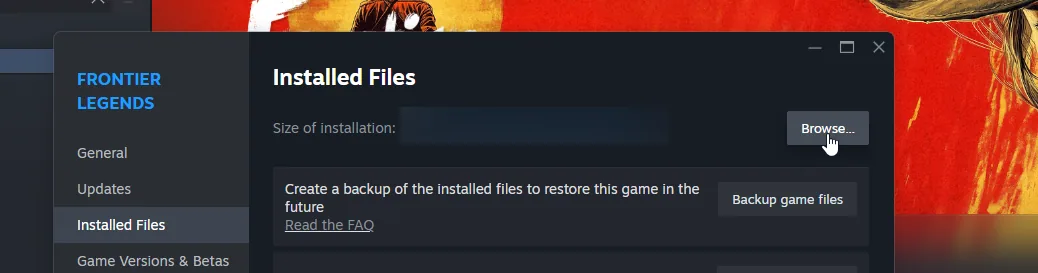
- A folder will open on your PC, navigate to the
FrontierLegends > Saved > SaveGamesfolder. - Find the world files you wish to transfer to the server, these will be .sav files, for example: worldname.sav and worldname Foliage.sav.
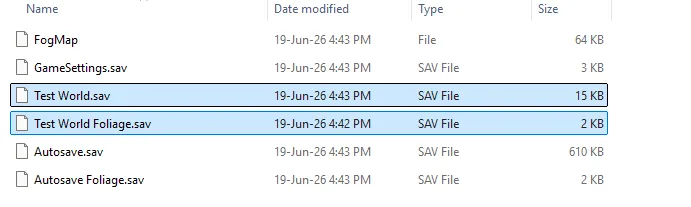
Keep these files open for now, as you'll need to upload them to the server.
Uploading save to Your Server
- Navigate to the Wabbanode Control Panel and Stop your server.

- Click the Files tab to find your Frontier Legends Server Files

- Navigate to the
FrontierLegends > Saved > SaveGamesfolder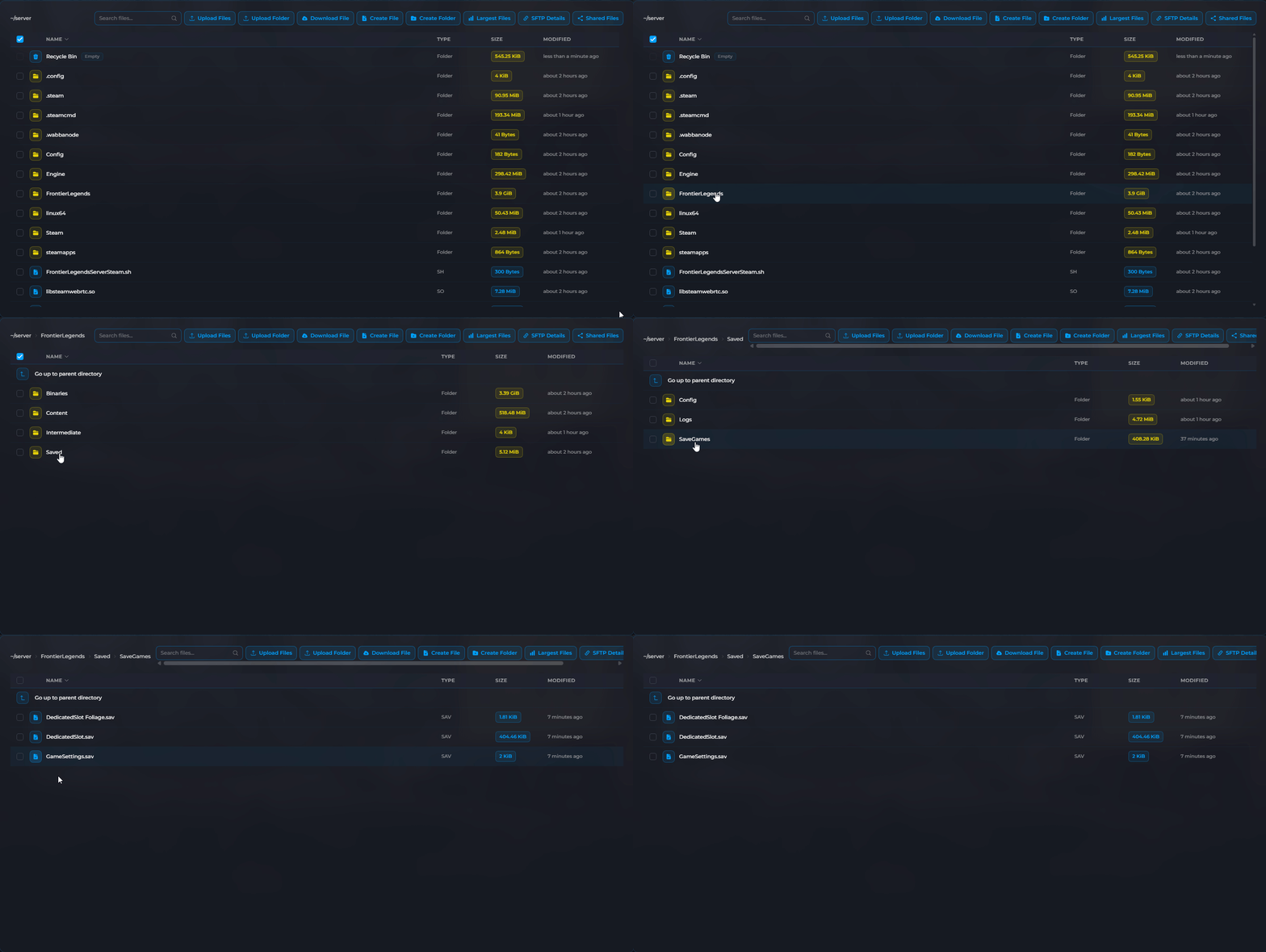
- Select all the files in this folder and click Delete.
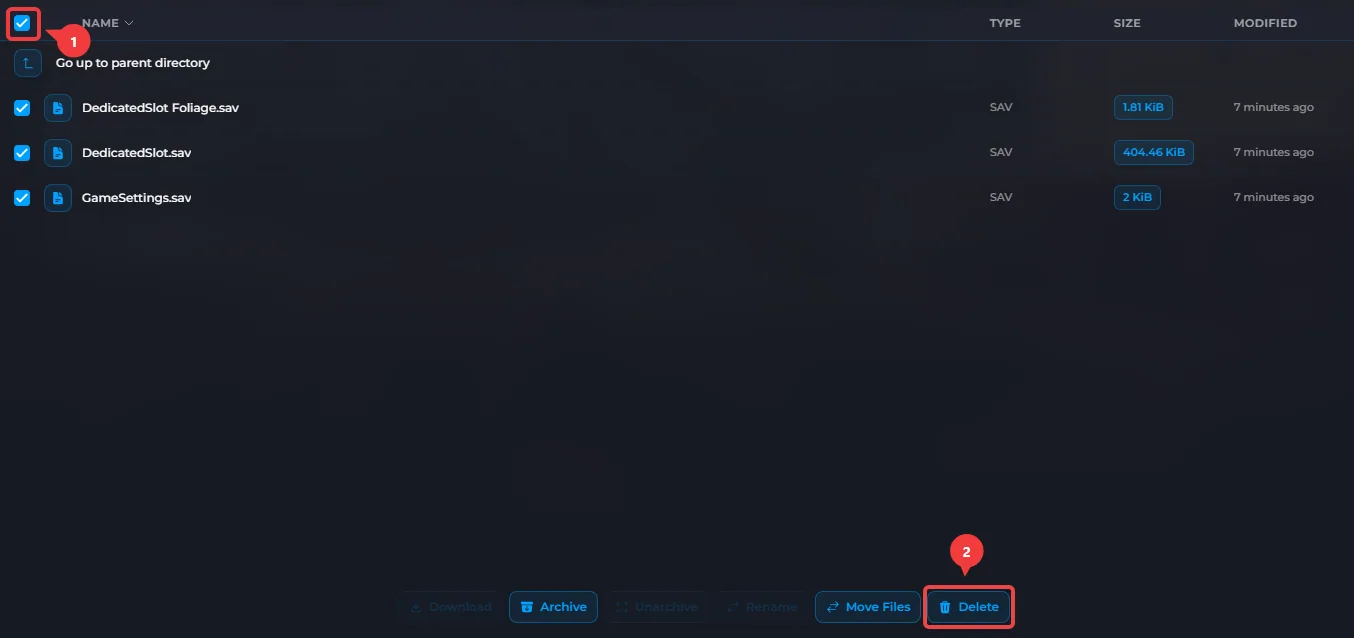 This will permanently delete your current save. Make sure to create a backup of your server files in case you need these files later.
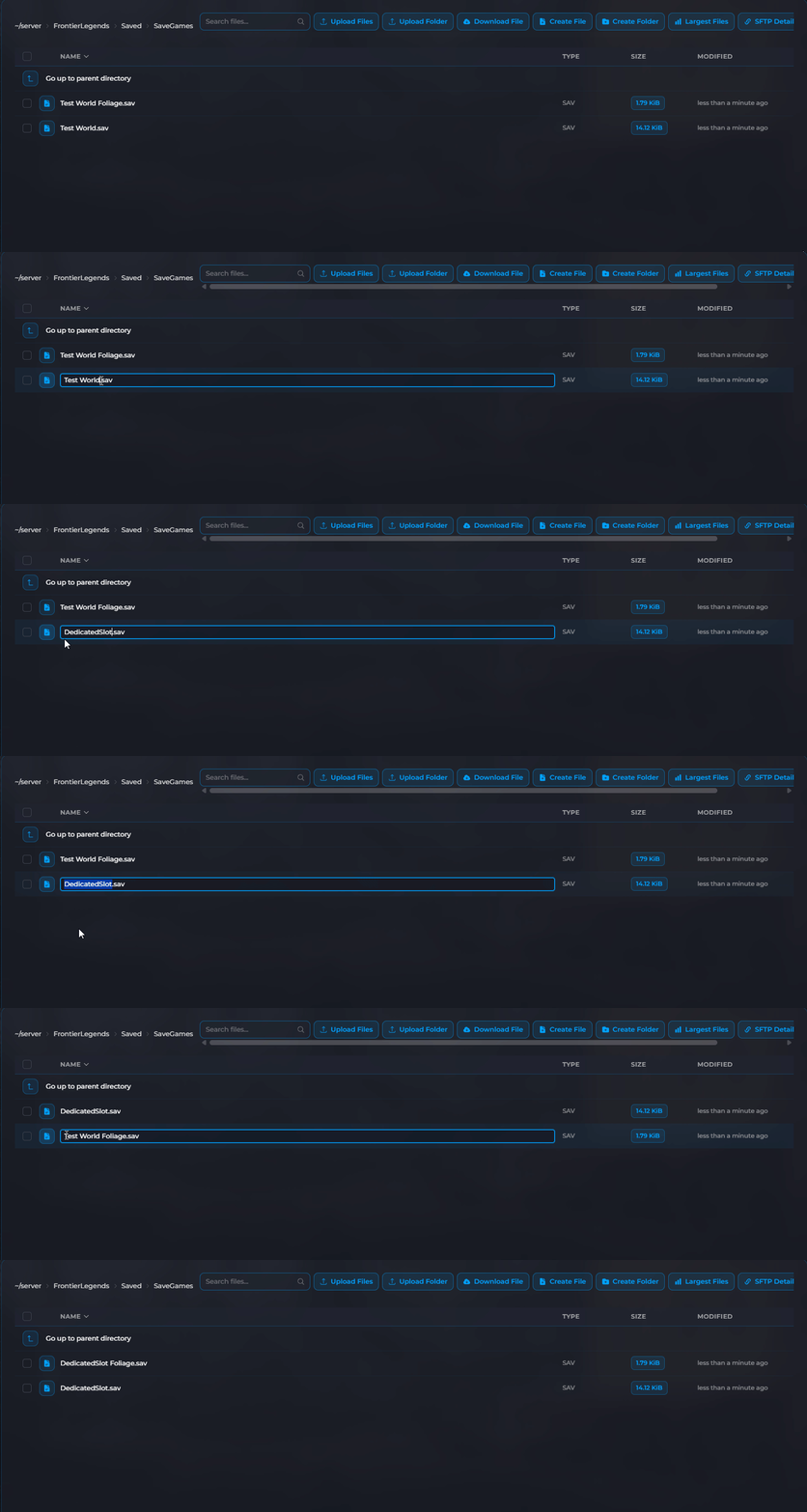
 - Upload your local save files into this empty folder.
- Rename the newly uploaded files. You must rename them to DedicatedSlot.sav and DedicatedSlot Foliage.sav so the server knows to load them.
- Click Start to bring your server back online.
Your local save file is now successfully uploaded to your Frontier Legends server. You can invite your friends to join your server.